
Pro License
Unlock additional features with a one-time Pro license purchase.
Octarine is free to use, but if you want access to advanced features like AI integration, properties, and more, you can upgrade to Pro. It's a one-time purchase—no subscriptions, no recurring fees. Pay once and you're set for life.
Check out everything included in Pro at https://octarine.app/pricing
Early Access Pricing
Octarine uses an early access pricing model, kind of like Steam Early Access games. Here's how it works:
As new Pro features get added, the price goes up—but if you buy now, you lock in this price forever and get all future Pro features included. No extra charges, no upgrades to buy. Just one payment, lifetime access.
Activating Your License
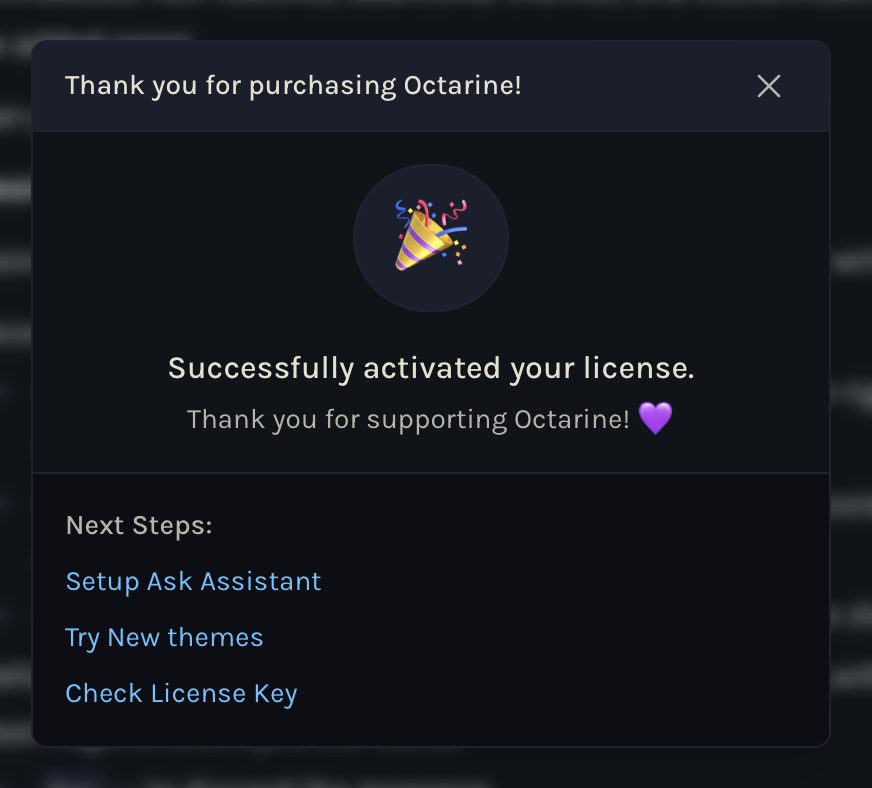
Once you've purchased a Pro license, activating it is quick. Click the Upgrade to Pro button in Octarine, enter your license key, and the Pro features unlock immediately.
Deactivating Your License
Need to switch devices? You can deactivate your license from a device in two ways:
Go to Settings → Pro and press Deactivate License, or manage your devices from the Octarine Dashboard or the LemonSqueezy dashboard link that came in your order email.
A Pro license works on 3 devices at the same time. If you want to activate it on a 4th device, just deactivate it from one of the original 3 first.
Octarine for Teams
Companies can buy Pro seats for their team in one order and reassign them as people join or leave. Each seat unlocks the same Pro features as an individual license, including sharing. See https://octarine.app/teams for pricing and details.
Activating a Team Seat
When your team invites you, activate Octarine with your seat:
- Open
Settings → Pro, or clickUpgrade to Pro, and choose Team seat. - Click Sign in to activate and sign in on the web with the email address your team invited.
- Octarine opens and activates automatically.
If Octarine does not open after you sign in, choose Octarine didn't open? Paste a code, then paste the code shown on the team dashboard and click Activate Team License.
Once activated, Settings → Pro shows your team's name, this device's activation ID, and when the seat was last checked. Octarine revalidates the seat periodically while it runs, so a seat removed by your team stops working without a restart. If you are offline, Pro features keep working for up to 7 days after the last successful check.
A seat works on 3 devices. To free one, click Deactivate Device in Settings → Pro, or click Manage Devices to manage your devices on the team dashboard.
Reached Your Activation Limit?
If you've hit the 3-device limit, head to the Octarine Dashboard or the LemonSqueezy Dashboard (linked in your purchase receipt) to deactivate the license from any device and free up a seat.
You can also purchase additional seats from the Octarine Dashboard to expand beyond the default 3-device limit.
Quick Answers
Is Octarine Pro a subscription?
No. Octarine Pro is a one-time purchase with no recurring subscription fee.
How many devices can use one Pro license?
A Pro license can be active on 3 devices at the same time.
How do I activate Octarine with a Team seat?
Go to Settings → Pro, choose Team seat, and click Sign in to activate. Sign in with the email your team invited, and Octarine activates automatically.
How do I move my Pro license to another device?
Deactivate the license from one existing device in Settings -> Pro, the Octarine Dashboard, or the LemonSqueezy dashboard link from your order email, then activate it on the new device.